
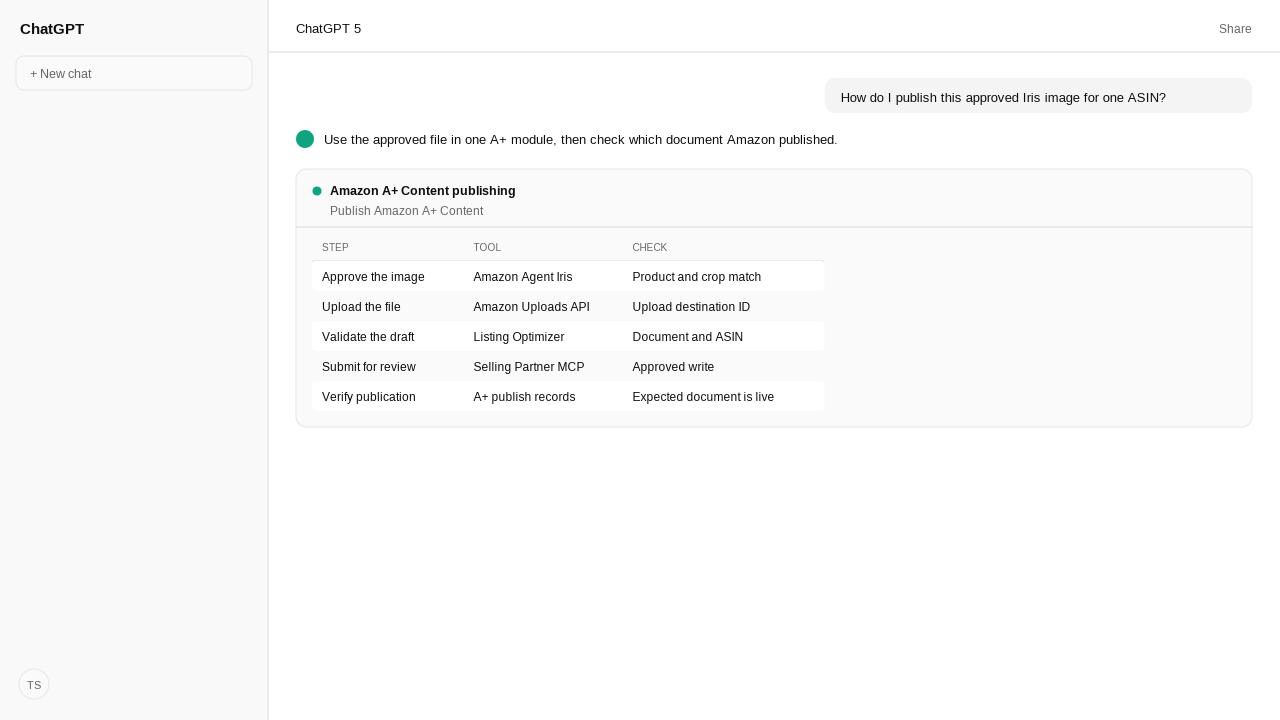
- Pick one eligible seller ASIN, marketplace, and locale. Check the existing A+ publish record before planning a new document.
- Create and approve the module image in Iris. Upload the file bytes to Amazon’s signed destination before referencing the returned upload destination ID.
- Use Listing Optimizer to review the exact copy, image, and ASIN. Validate before saving, then approve the document creation, ASIN association, and submission.
- Read back the document status and check the ASIN’s publish record. Match the document reference and inspect the live product detail page.
The Amazon A+ Content API lets an agent create a document, apply it to a product, submit it for approval, and verify publication. Start with one ASIN. Approve an image made with Amazon Agent Iris, upload it to Amazon, then use Kuudo’s Selling Partner MCP to validate and submit the exact document. Amazon’s A+ Content API use-case guide.
Keep the source photo, approved image, alt text, and target ASIN together. If your designer edits a label or changes a crop, the Listing Optimizer Skill can show the exact draft affected by that change before it writes to Amazon. Carry the same file and ASIN through validation and submission so the person approving the draft sees what Amazon will review.
One ASIN and one marketplace give the draft a clear scope
In your AI client, connect an authorized seller account through Kuudo’s Selling Partner MCP and connect Amazon Agent Iris. Give the agent one eligible Amazon Standard Identification Number (ASIN), its marketplace, and the desired locale, such as en-US. Use a Brand Registry account with access to the ASIN and check that the connection has Product Listing access for uploads. Kuudo’s A+ Content tools.
Ask for the current A+ publish record with searchContentPublishRecords. Review any Standard or Premium content that already occupies the slot before you allow a replacement. To create A+ content for this seller workflow, use content type EBC. Choose a module such as STANDARD_HEADER_IMAGE_TEXT and record its image slot requirements. Amazon’s publishing tutorial and troubleshooting guide.
An approved Iris file becomes an Amazon upload destination ID
Give Iris a real product photo and ask for an image composed for the chosen module. Compare the labels, proportions, and colors with the reference. If a part looks different, regenerate before approving. Crop the file for the slot and write alt text that describes the image. Check the image against the A+ content guidelines before uploading it. Amazon’s A+ content guidelines.
- Call
uploads_createUploadDestinationForResourceforaplus/2020-11-01/contentDocuments. Supply the marketplace, the file’s MD5 checksum, and its content type. - The Uploads API returns a signed HTTPS URL and the destination ID. Have a client or helper with binary upload capability POST the image bytes to that destination using the signed form fields. Confirm a successful upload. The MCP call creates the destination. The file transfer is a separate request.
- Put Amazon’s
uploadDestinationIdin the module’s image block. When the module accepts a reusable Media Library asset, use the corresponding AmazonmediaIdinstead. Amazon’s upload steps and Media Library guide.
Listing Optimizer validates the exact document before each approved write
Give Listing Optimizer the planned product claims, approved asset, locale, and ASIN. Ask it to show the full JSON document and its required name, contentType, locale, and contentModuleList fields. The content module list is an array with one object per module. In this image and text example, set the module type (contentModuleType) to STANDARD_HEADER_IMAGE_TEXT. Put the returned uploadDestinationId value in the image field alongside the crop and alt text.
Run validateContentDocumentAsinRelations with that document and the intended ASIN. Read both warnings and errors, including in a successful HTTP response. Confirm the seller’s A+ eligibility separately. Amazon’s validation reference and troubleshooting guide.
| Before you approve | What the agent shows you | Operation |
|---|---|---|
| Save the draft | Validated modules, image, alt text, and locale | createContentDocument |
| Apply the draft | Document reference key and the full ASIN set, with additions and removals | postContentDocumentAsinRelations |
| Submit to Amazon | Saved document, read-back of the applied ASIN, and any current content it may replace | postContentDocumentApprovalSubmission |
The ASIN write replaces the complete set. When working with an existing document, read every current relation before posting. A removed ASIN loses that document’s content. Re-read the relations with listContentDocumentAsinRelations before submission. Amazon’s ASIN relation operation.
The publish record confirms which document owns the live slot
Read getContentDocument for the saved reference key and marketplace to see whether Amazon approved or rejected the submission. Amazon asks you to check approval at most once per hour per document. Keep other requests within their rate limits. A rejected document goes back to the A+ rejection workflow with Amazon’s issue details. Amazon’s publishing tutorial.
Once approved, call searchContentPublishRecords for the ASIN again and match the expected document reference. Then check the live detail page in the intended marketplace. An approved document can be displaced by another document of the same content family. Amazon’s publish records reference and troubleshooting guide.
What happens next: plan one A+ document
Start by asking your agent for a read-only plan. This gives your creative and catalog teams one draft to review before anyone generates an asset or writes to Amazon.
For [ASIN] in [marketplace], check the current A+ publish record and plan one Standard image-and-text module for [locale]. Show the image requirements, the proposed Iris brief, the copy and alt text, and what existing content the submission could replace. Wait for my approval before generating the image or making any Amazon changes.
Use the A+ Content guide to choose modules and formats. For edits across existing projects, use the A+ automation guide.
Connect the workflow for your first A+ document
Bring one seller ASIN, one marketplace, and a product reference. We’ll map the creative review, Amazon upload, and publication checks in your AI client.
Request beta accessWhat you need to run publishing A+ Content
- connection
- An authorized seller account, the Selling Partner MCP, and Amazon Agent Iris in the same AI client.
- access
- Brand Registry eligibility for the seller and ASIN, plus Product Listing access for the upload workflow.
- Skill
- Listing Optimizer, amazon-sp-listing-optimizer v1.2.3.
- scope
- One eligible ASIN, one marketplace, one locale, and one new Standard A+ Content document.
- Last verified
- 2026-11-26
Keep exploring publishing A+ Content
Use these companion guides to understand the inputs, follow-on analysis, and adjacent workflows behind this playbook.
- What Is Amazon A+ Content? Types, Rules and Setup
Choose the content type and check eligibility, module specs, and image rules.
- Amazon A+ Content Automation
Audit existing projects and repair problems across a catalog.
FAQ
Can I paste an Iris image URL into an A+ Content module?
Use the signed Iris URL to retrieve your approved file if needed. For the Standard A+ document upload workflow, POST the image bytes to Amazon’s signed upload destination and reference the returned uploadDestinationId in the module.
Does Amazon’s A+ validation save a draft?
No. validateContentDocumentAsinRelations checks the proposed document and ASINs. Saving a draft requires a separate create or update operation. Check response warnings and errors even when validation returns HTTP 200.
Can I reuse a Media Library asset instead of uploading again?
Yes, where the module accepts an existing Media Library asset. Use its Amazon mediaId in that field. For an image block that accepts both reference types, provide exactly one of mediaId or uploadDestinationId.